Product
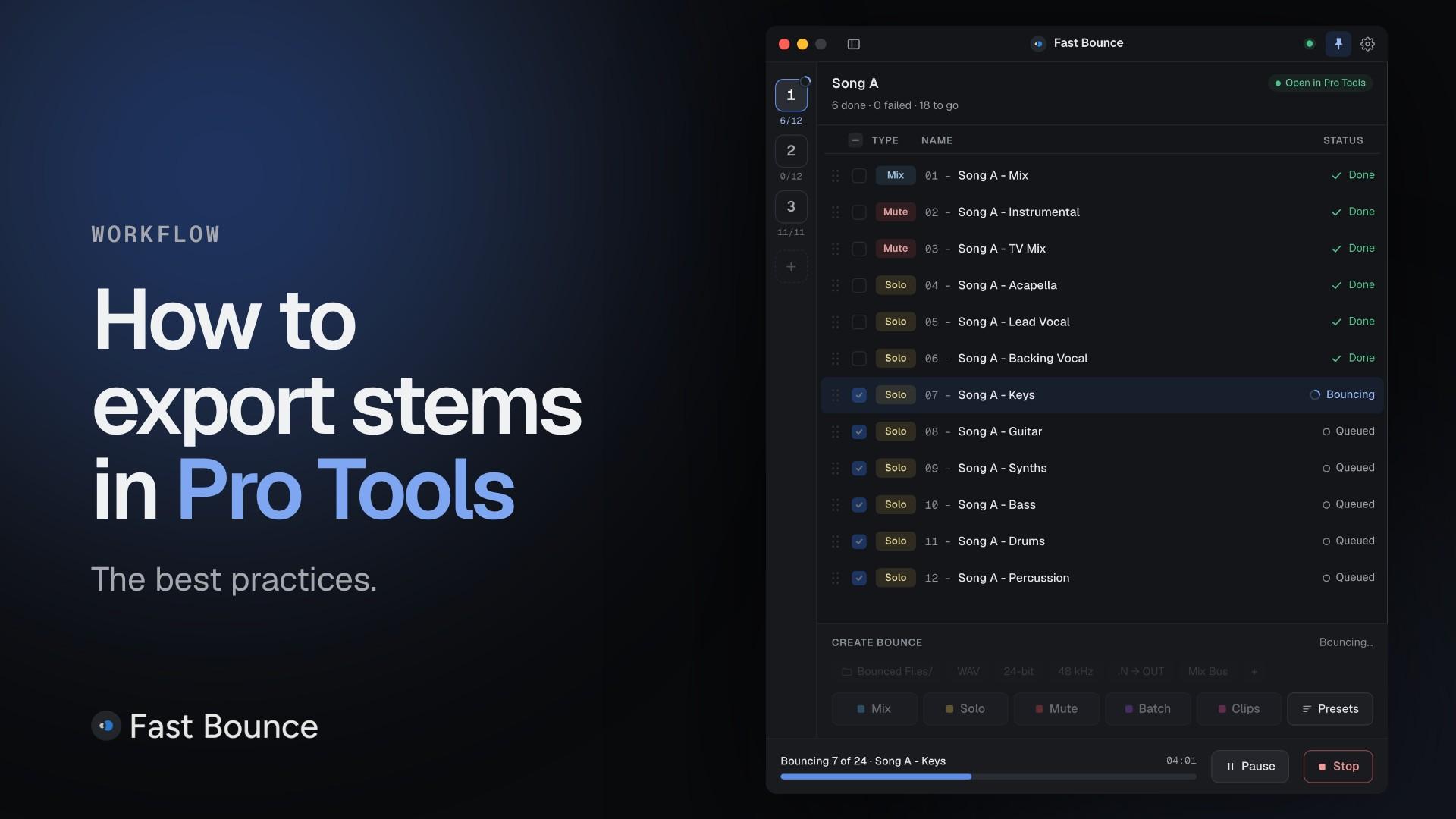
What's new in Fast Bounce v2
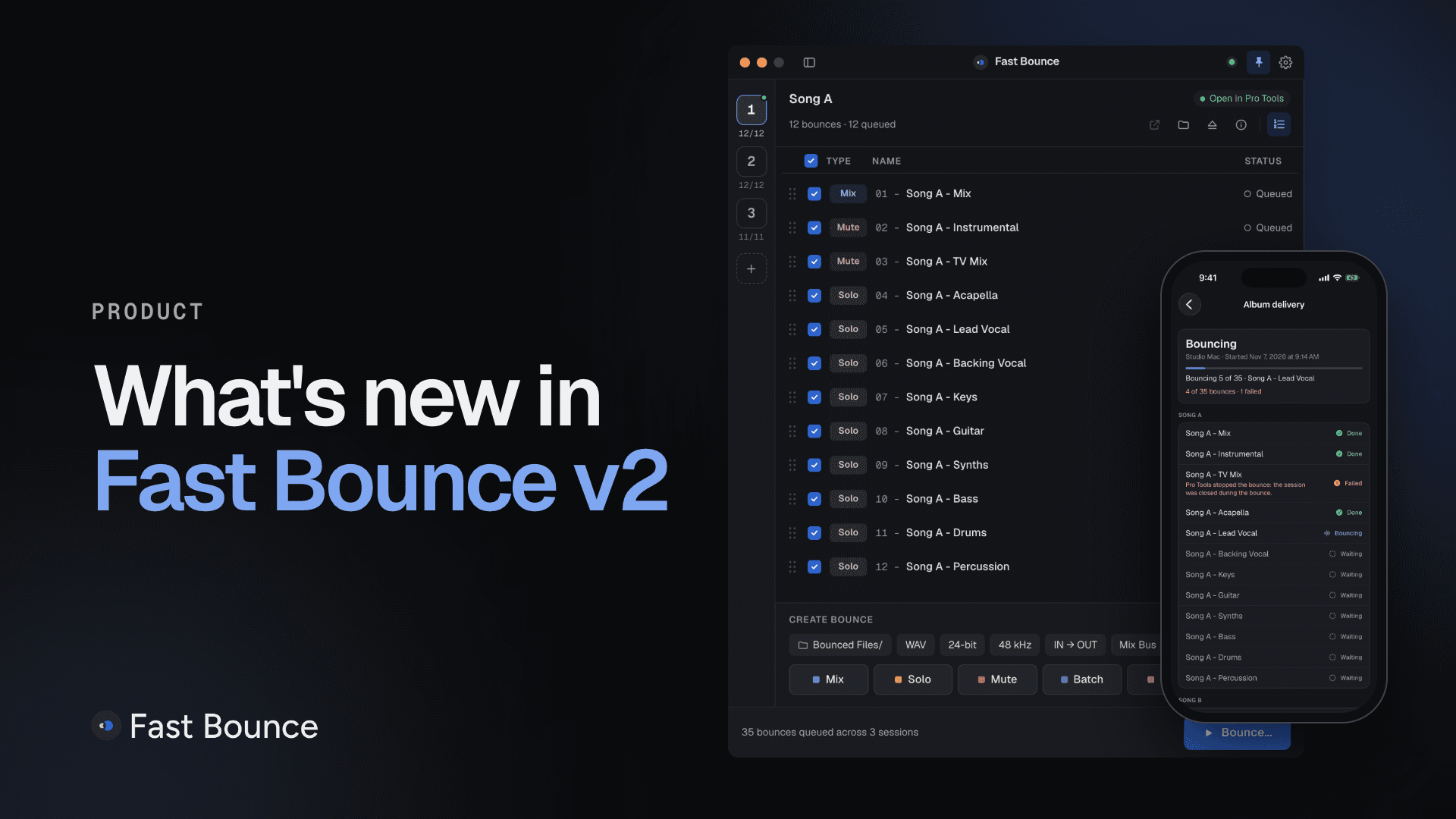
Fast Bounce is bounce automation for Pro Tools. You line up the mixes, stems and alternate versions you need, across as many sessions as you like. Fast Bounce opens each session, solos or mutes the right tracks, sets the range and format, bounces, and moves on to the next one.
v2 is a new app around that idea, on macOS and Windows. This post walks through everything in it, in the order you'll use it, with a link to the full guide for each part.
v2 at a glance
One window: sessions on the side, one bounce list, the setup and the mode buttons under it.
Three kinds of bounce (Mix, Solo, Mute), plus Batch and Clips to add many at once.
Presets that check each session for the tracks, buses and markers they need before anything bounces.
Load a whole album at once, with your presets applied on the way in.
The Bounce Summary in the app, and on paid plans in your inbox, your dashboard and on your iPhone.
The whole app on macOS and Windows, with nothing installed in Pro Tools.
One window
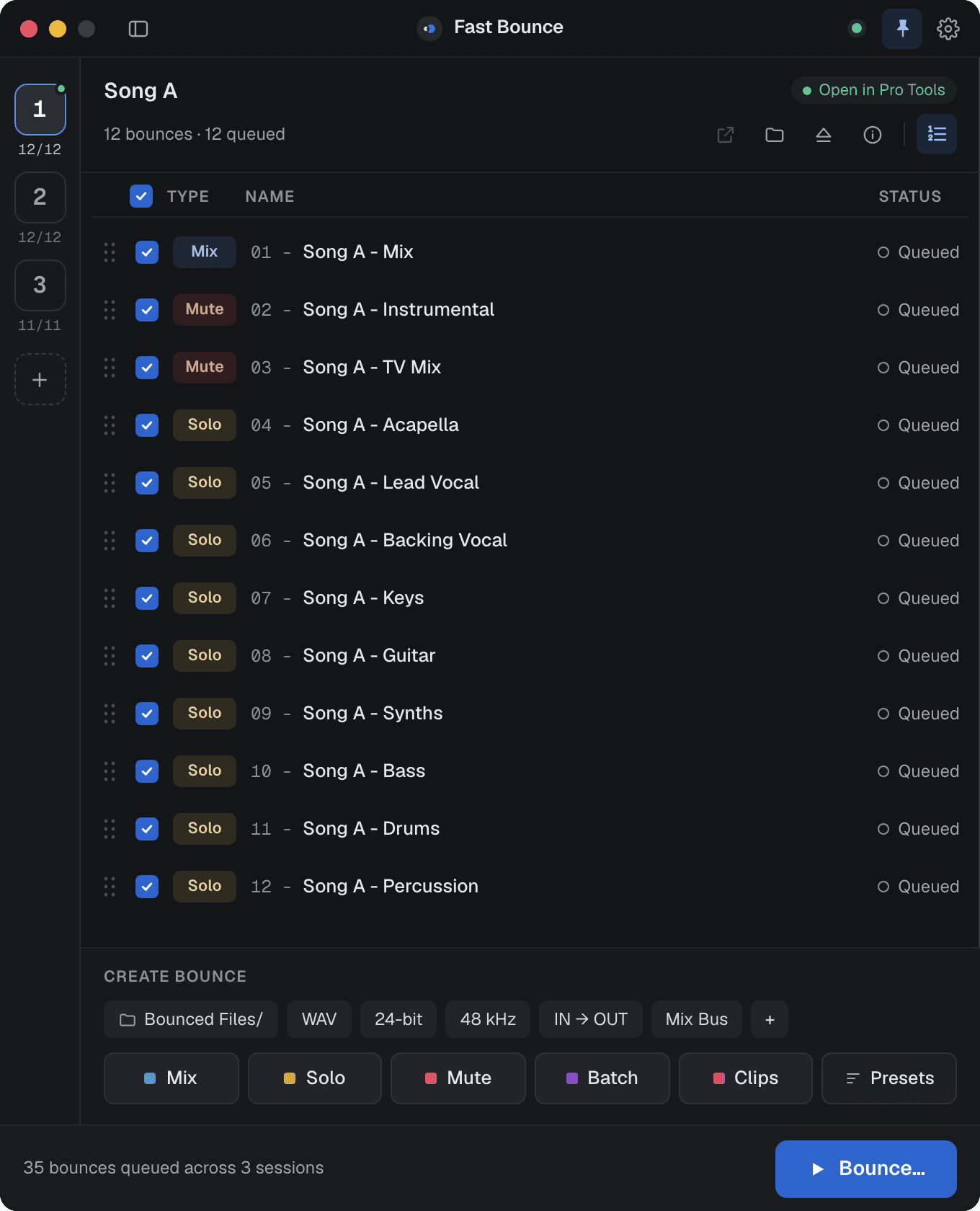
Everything happens in one window. Your loaded sessions sit in a rail on the left, numbered, so ⌘1 to ⌘9 switch between them. Each card shows how many bounces are queued, and a green dot marks the session that's open in Pro Tools.
The selected session's bounce list fills the middle. Every row shows its kind, its name and its status: Queued, Bouncing, Done or Failed, with the reason on the row. Under the list, Create Bounce holds the setup for your next bounces and the mode buttons that add them. Bounce… sits in the footer.
The app comes in Light and Dark, or Match system. How it works covers every part of the window.
Load a session
When a session is open in Pro Tools but not loaded yet, it waits in the rail as a dashed card with Load under it. Click it, or press ⌃⌘L with Pro Tools in front. Fast Bounce reads the session's tracks, memory locations, mix sources and format, and changes nothing in it.
Your bounces travel with the session. The bounce list is saved in the session folder. Copy the folder, sync it or hand it to another engineer, and the bounces come along. Save As a new version and the list carries over. See Load a session.
Add bounces: Mix, Solo, Mute, Batch and Clips
Every bounce in the list is one of three kinds:
Mix (⌃⌘X): the whole mix, as the session plays.
Solo (⌃⌘S): the selected tracks soloed together. Stems, an a cappella, a vocal group.
Mute (⌃⌘M): the whole mix with the selected tracks muted. An instrumental, a TV mix.
Select the tracks in Pro Tools and press the mode button or its shortcut. The shortcuts work while Pro Tools is in front, and you can change them.
Two more buttons add many bounces at once:
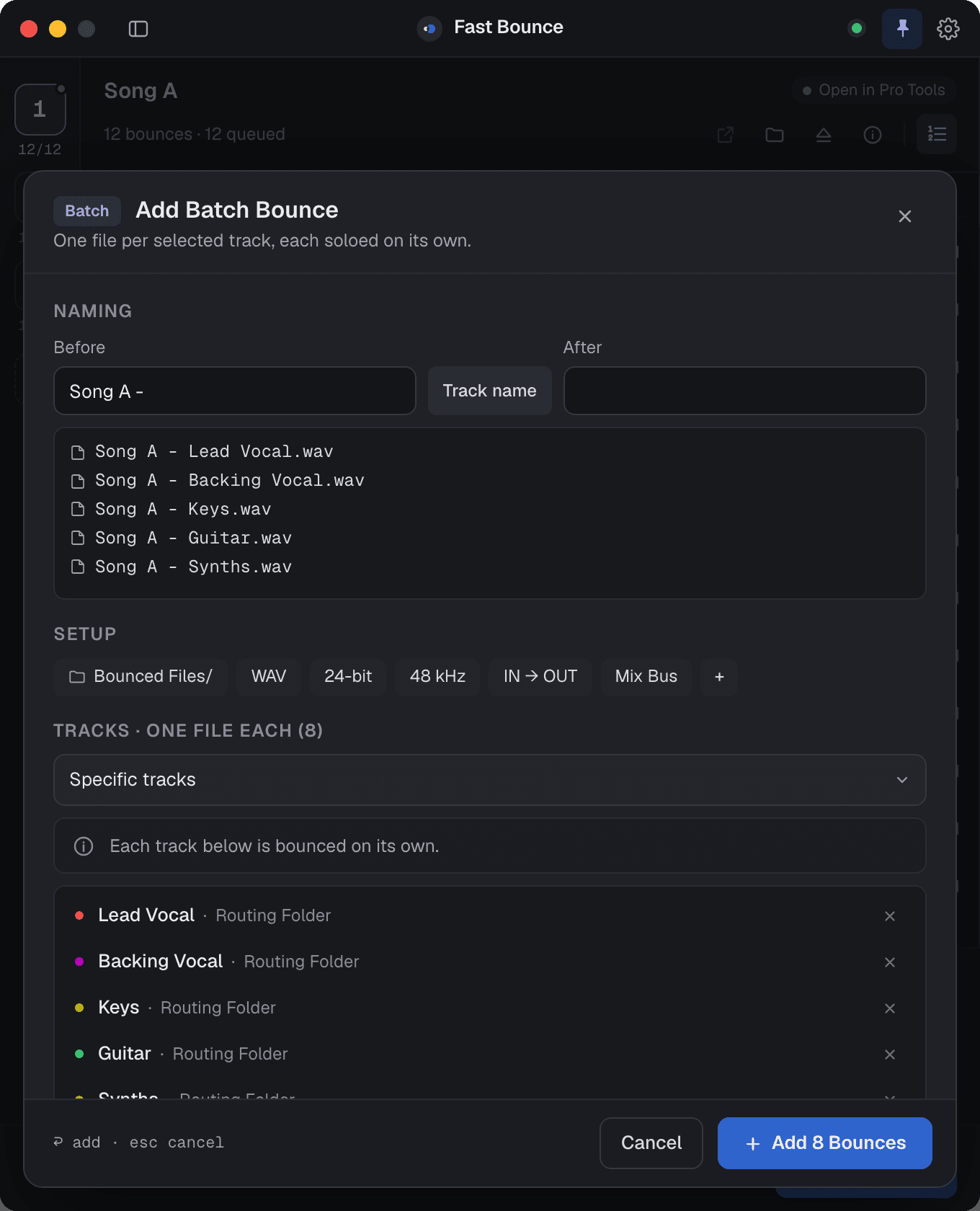
Batch (⌃⌘B) adds one Solo bounce per track, "each soloed on its own". Pick the tracks yourself, or let a rule pick them: all audio tracks, all folder tracks, all VCA tracks, or the audio, folder or VCA tracks inside the selected folders, with or without subfolders. Before and After fields build every name around the track name, and the sheet ends with Add 8 Bounces.
Clips (⌃⌘C) adds one bounce per clip on the selected tracks, each over the clip's own range, accurate to the sample. Each clip becomes a Solo or a Mix. It's made for sessions that hold several songs or cues: an album, a mastering session, a reel.
Every bounce stores its tracks by name, and Fast Bounce puts the solos and mutes back when it's done. See Adding Bounces.
Setup: how each bounce is made
Every bounce carries its own Setup, a row of chips:
Folder:
Bounced Files/in the session folder by default. Type a name for a subfolder, pick a recent folder, or choose any folder on any disk.File type: WAV, AIFF or MP3.
Bit depth: 16, 24 or 32-bit float.
Sample rate: 44.1, 48, 88.2, 96, 176.4 or 192 kHz.
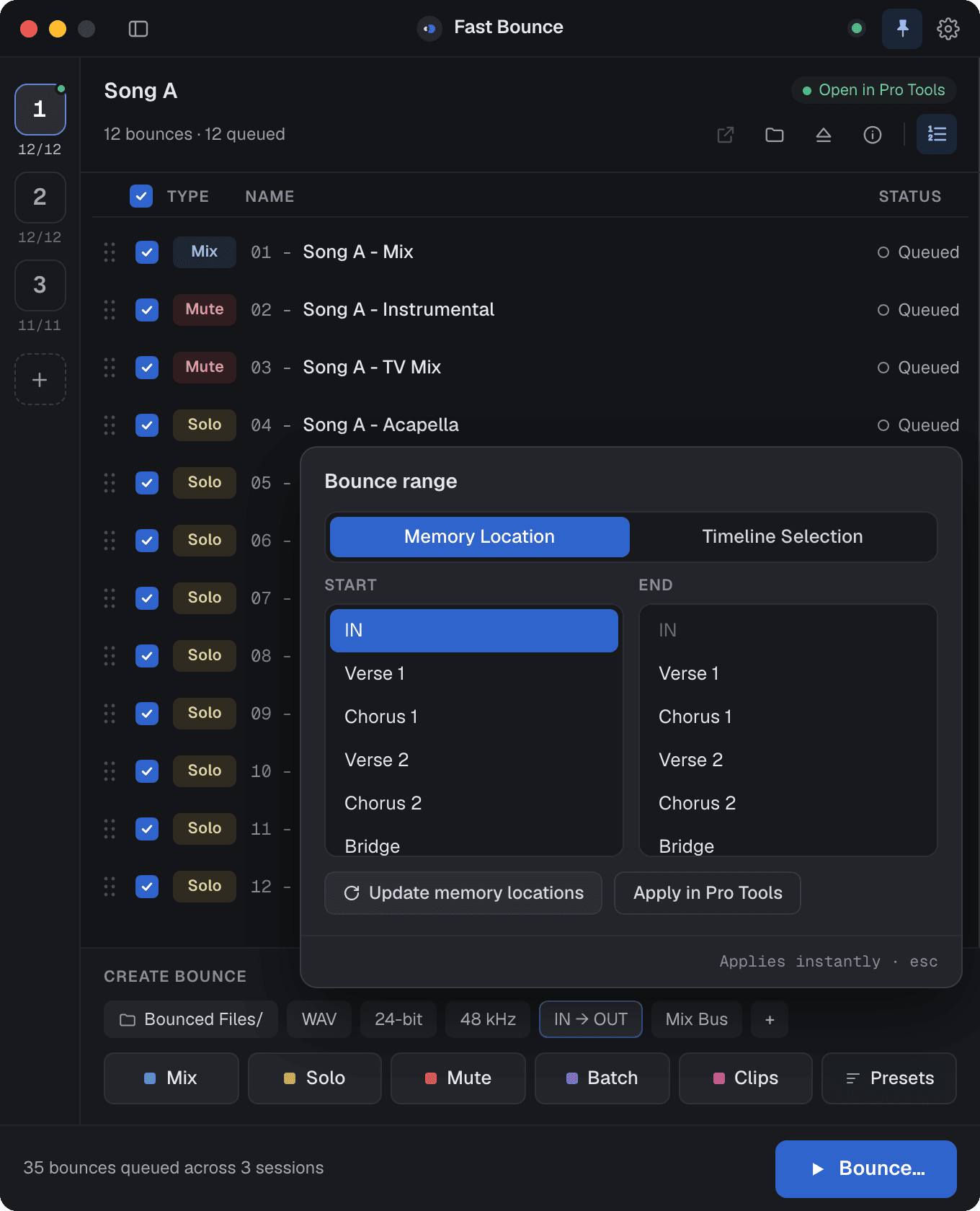
Range: a start and end memory location, one memory location that holds a range, or the timeline selection. Apply in Pro Tools shows the range in your session before you bounce.
Mix source: the bus or output to bounce. Pick several, and one bounce makes one file per source in the same pass.
Options: Realtime bounce for outboard gear and hardware inserts, Pad to frame boundary for video, and Import after bounce.
The chips start with the session's own values, so a new session is ready as it is. A chip you changed shows it, with its own reset. Every bounce starts and ends exactly where you set it. See Changing Parameters.
Edit many bounces at once
Double-click a bounce to edit it. Select several and press ⌘E, and the sheet becomes Edit 8 Bounces. Values that differ show as Mixed: leave them and each bounce keeps its own, or set them and all of them change. Rename works on every name at once, with Find and Replace, Trim, and Add before or after.
Copy one bounce's Setup with ⌘C and paste it onto others with ⌘V, choosing which parts to paste. ⌘D duplicates bounces, for a second format of the same mix. See Editing Bounces.
Presets that check first
A preset is a recipe for the files you always deliver: a kind (Mix, Solo, Mute or Batch), its tracks by name or by rule, the Setup values you choose to save, and a name. Build presets on your template, keep them in groups such as Delivery and Stems, and apply a whole group in one go.
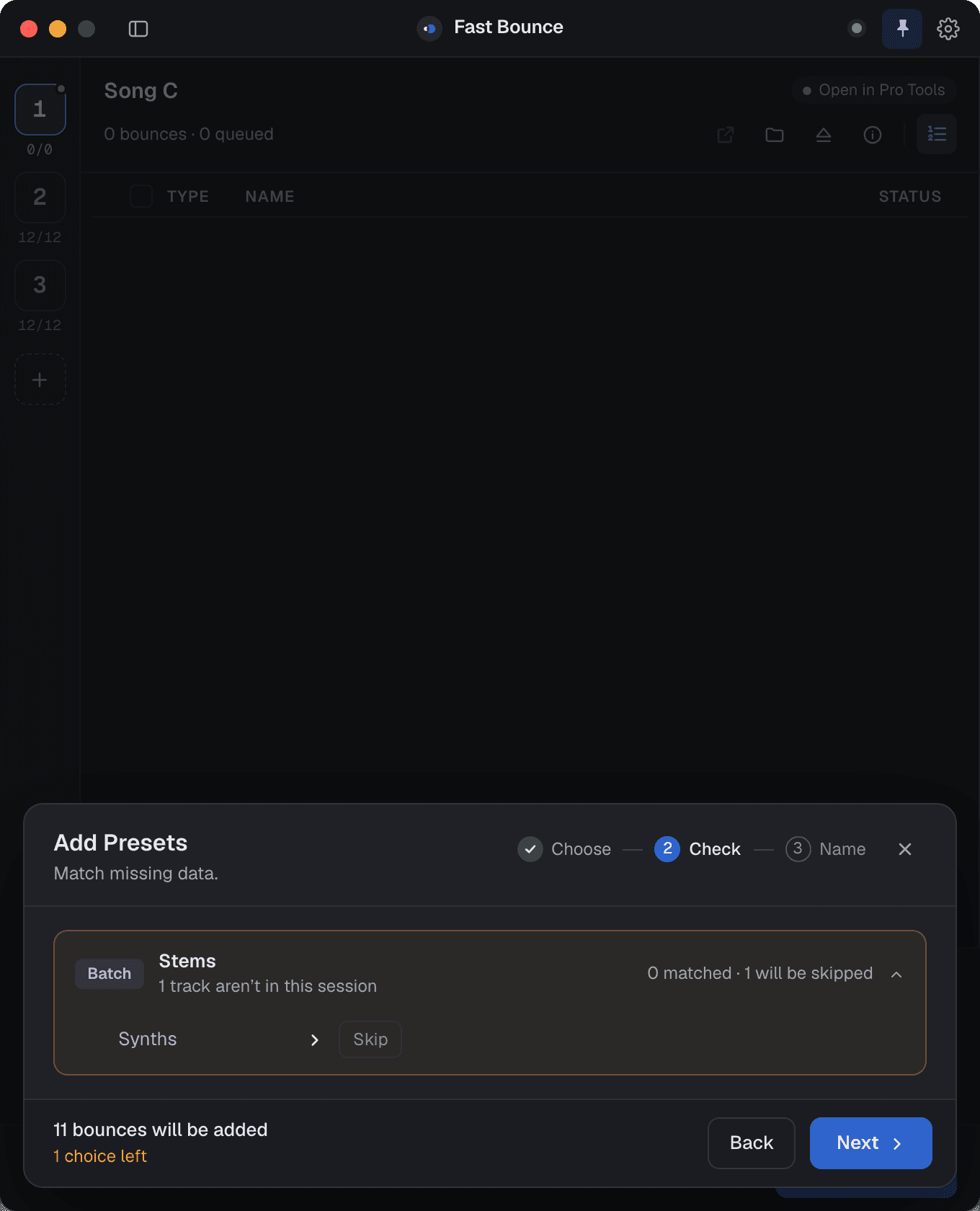
Applying takes three steps: Choose, Check, Name. The Check step looks for every track, bus and marker the presets need in this session. One missing thing is one fix, however many presets need it, and Fast Bounce suggests the closest name. A bounce whose name already exists can be kept twice, replaced or skipped. A preset built on a rule never misses a track. When nothing is missing, it goes straight to Name. See Presets.
A whole album at once
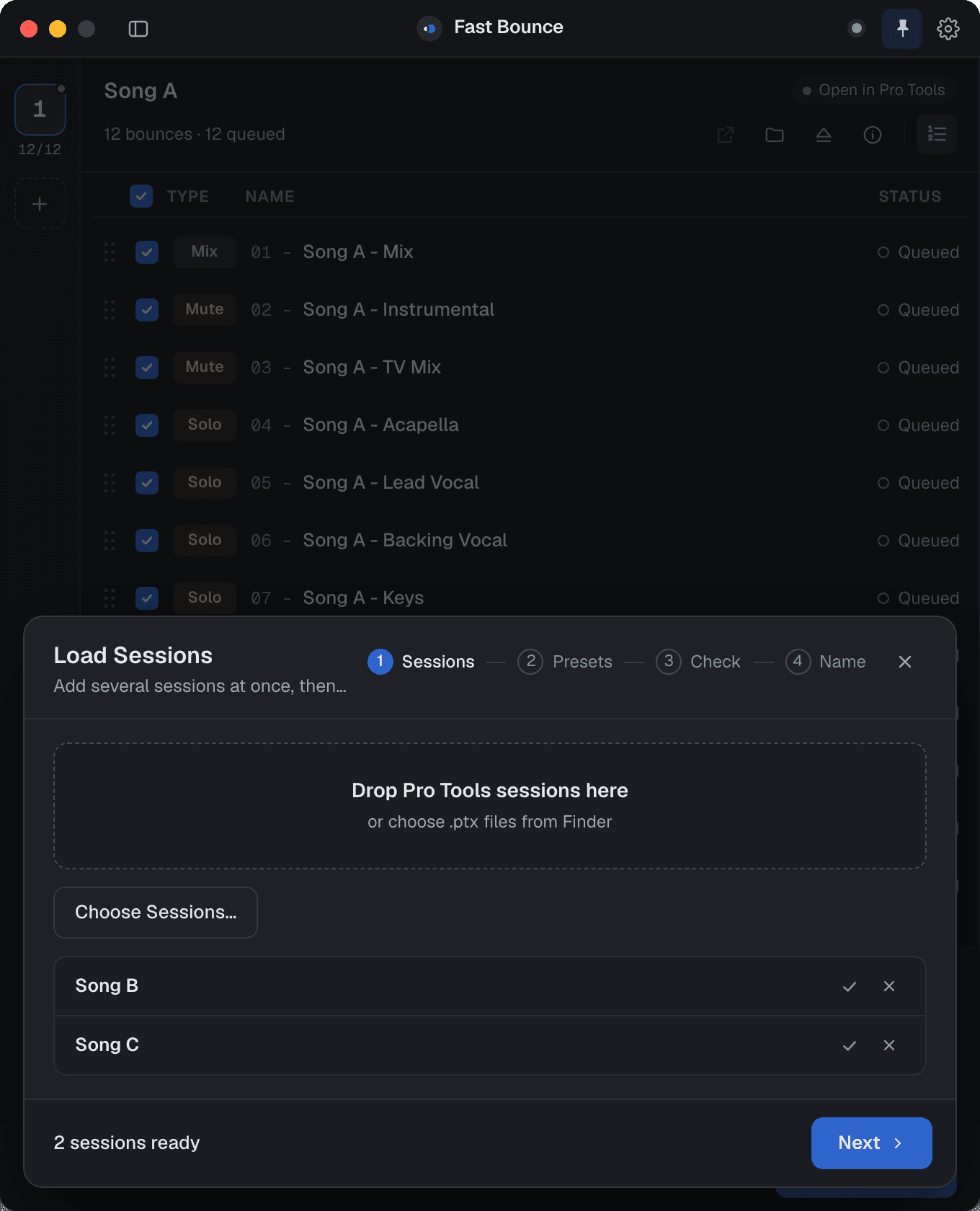
Load Sessions adds many sessions in one go. Drop them on the window, or use + › Load Sessions…. Then four steps: Sessions, Presets, Check, Name. Your presets are applied to every session on the way in, and a fix picked for one session fills the same miss in the others. The last button says what you get, such as Add 23 Bounces to 2 Sessions. See Load multiple sessions.
Import Bounces brings last song's bounces into this one. Right-click a session and choose Import Bounces. Every bounce is checked against the new session's tracks, buses and markers first. When it all lines up, the sheet says Everything matches. The session you import from is never changed. See Import Bounces.
Start Bouncing and walk away
Press Bounce…. The Bounce sheet lists every session with queued bounces. Drag them into the order you want, untick any to leave out, and press Start Bouncing.
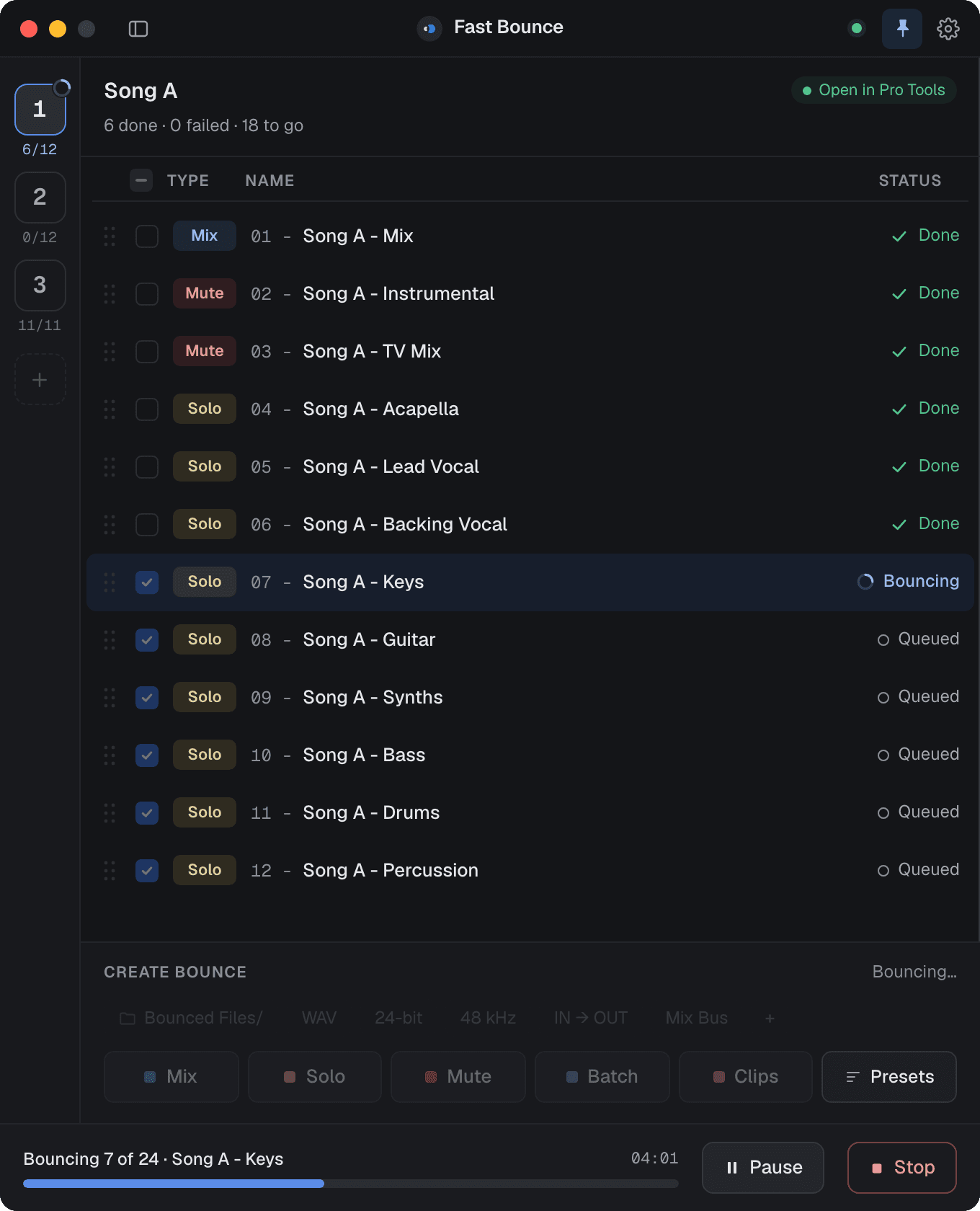
Fast Bounce switches sessions in Pro Tools by itself and bounces every queued file. Pro Tools bounces in the background, so you can keep using other apps. For heavy sessions, Wait after opening a session gives Pro Tools time to load its plugins first.
A failed bounce doesn't stop the rest. Pause waits for the current bounce to finish, lets you edit, then Resume. Stop ends after the current bounce, and the bounces that never started stay queued. A bounce in progress is never cancelled.
On a paid plan, When it's done on the Bounce sheet names the batch and sets Email me and Notify my iPhone. See Start Bouncing.
The Bounce Summary
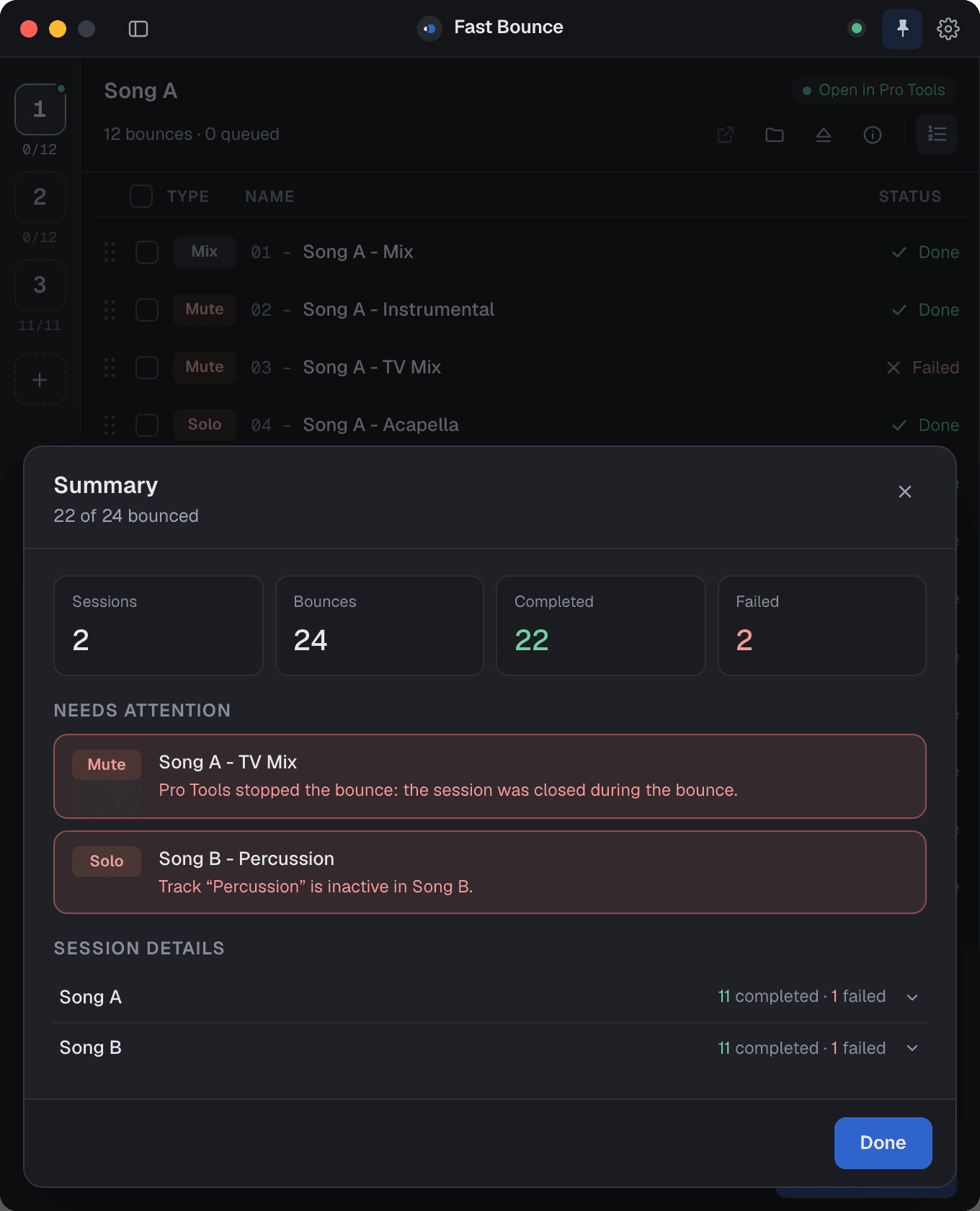
When bouncing ends, the Bounce Summary opens. Its headline says how it went: "Your bounces have finished", "Your bounces have finished, 2 failed" or "Bouncing stopped". Under it are the counts, such as "11 of 12 bounced · 1 failed", the time it took, Needs attention with each failure and its reason, and every file made, with Reveal in Finder.
Finished bounces are unchecked, so bouncing again only does what's left. On a paid plan, the same summary also goes to your dashboard, to your inbox and to your iPhone, in the same words everywhere.
Settings that set your defaults
Bounce Defaults: what every newly added session starts with: format, mix source, range and bounce options. Each value is fixed, or Session to follow the Pro Tools session. See Bounce Defaults.
Naming Rules: one rule per kind of bounce, built from tokens such as Session name, Track name, Clip name, Preset name, Sample rate, Bit depth and Date, with numbering ("01 - ") if you want it. See Naming Rules.
Shortcuts: change the global shortcuts that add bounces and load the open session. See Shortcuts.
Support: Open Diagnostics… records what happens while you reproduce a problem and sends it with your Pro Tools version attached. See Support.
The Fast Bounce app for iPhone
The Fast Bounce app for iPhone is free on the App Store, listed as Fast Bounce Remote. It lets you follow your bounces from anywhere:
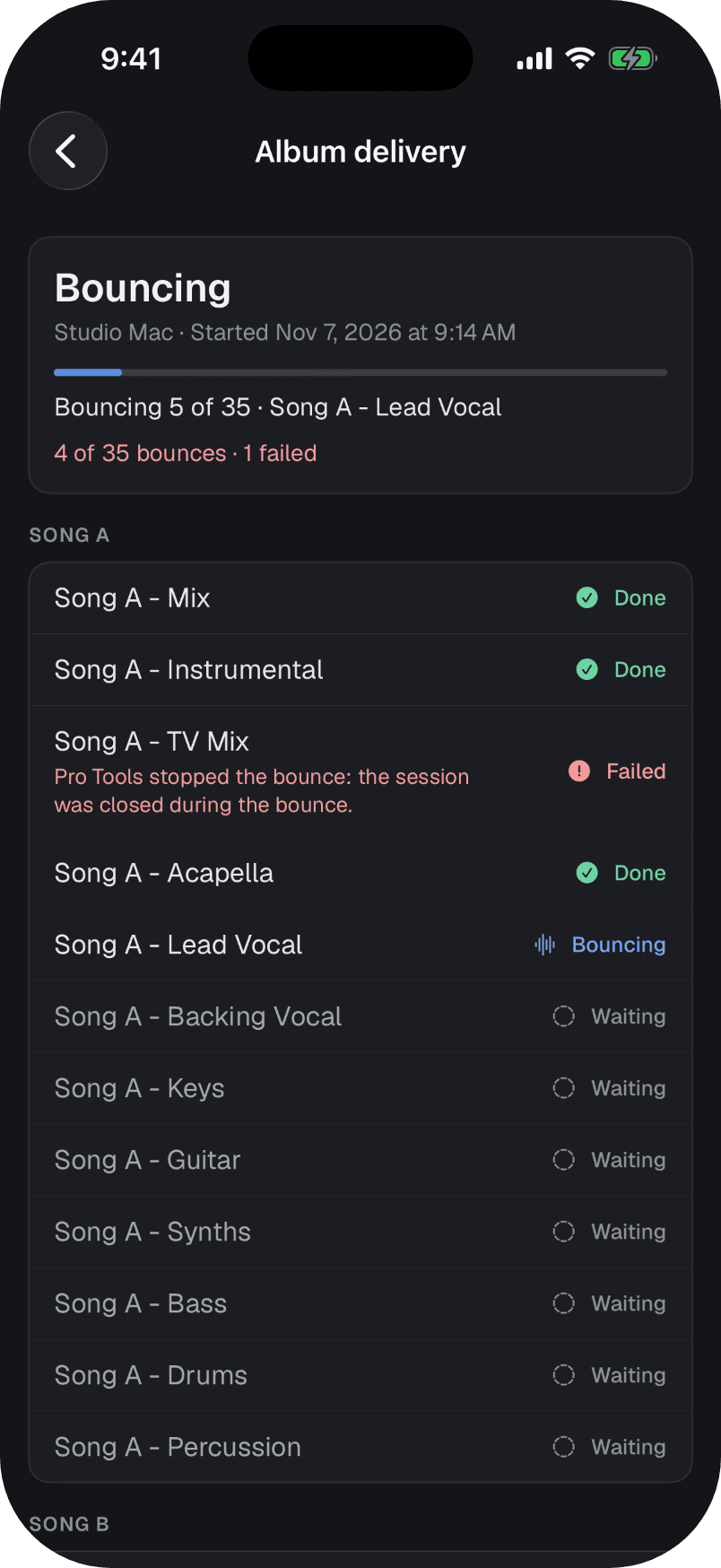
Bouncing now shows each Mac that's bouncing, with a progress bar, the bounce in progress and the counts, such as "5 of 12 bounces · 1 failed". Tap it for every session and every bounce with its status.
Your computers lists the computers signed in to your account while nothing is bouncing.
Bounce Summaries lists every finished or stopped batch from all your computers.
A notification arrives the moment bouncing finishes or stops, even with the app closed.
Sign in with Apple, with Google, or with your email and password. Or choose Link with a code: the phone shows 6 digits, and you type them in Settings › iPhone App on the Mac. The phone only watches: you set up, start, pause and stop bouncing on your computer.
The app is free to download. Its progress and Bounce Summaries are part of the paid plans, and the progress needs version 2.0.1 or later of the app on your computer. It runs on iOS 17 or later. See the iPhone app guide.
AI agents, if you want them
Fast Bounce has no AI in it. It does what you'd expect, every time.
If you already work with Claude Code, Claude Desktop and Cowork, or Codex, you can let an AI agent set up and bounce your sessions through a local connection in Settings › Agents. It's off by default, it stays on your computer, the agent shows you the plan before it bounces, and it's part of the paid plans. Read Is Fast Bounce AI? How AI agents fit in, or the Agents guide.
macOS and Windows
v2 is the whole app on both. On the Mac it's one universal build for Apple silicon and Intel.
Pro Tools 2024.10 or later
macOS 12.7 or later, or Windows 10 (22H2) or Windows 11
Fast Bounce drives Pro Tools through Avid's own scripting interface. Nothing is installed into Pro Tools, and there's no plugin or other app to add. Every file comes from Pro Tools' own Bounce Mix, so it sounds exactly like a bounce made by hand. Your session is never edited unless you turn on Import after bounce. See Install and sign in.
Coming from Fast Bounce 1.x
There's nothing to buy. One account signs in to v1 and to v2, and every plan includes the update.
Version 1.x can't update itself, so download v2 once and install it over your current app. You stay signed in, and your presets, Naming Rules, Bounce Defaults, shortcuts and every session's bounce list carry over the first time v2 opens.
From then on, Fast Bounce tells you when a new version is out. Nothing installs on its own, and never in the middle of a bounce: choose Download and Restart, or Later. Settings › General also has Get beta updates, to try new features early.
Plans
Free: every bounce mode and presets, up to 4 bounces per session, one session at a time. No card, no time limit.
Monthly and Annual: unlimited bounces and sessions, automatic session switching through the whole queue, the Bounce Summary by email, in your dashboard and on your iPhone, AI agents, and every update. Both start with a 7-day free trial.
Perpetual: everything in Monthly and Annual, paid once, with lifetime updates including major versions, offline access on one computer per seat, and a 30-day refund window. Studios can get multi-seat licenses.
Compare the plans, or try the whole app in your browser first with the guided tour.