
Presets
A preset is a bounce without a session: its type, the tracks it needs (by name, or by rule) and the setup values you chose to save. Apply it to a session and Fast Bounce finds those tracks there and adds the bounce. If you deliver the same set of files on every project, presets are how you stop setting them up.
Make a preset
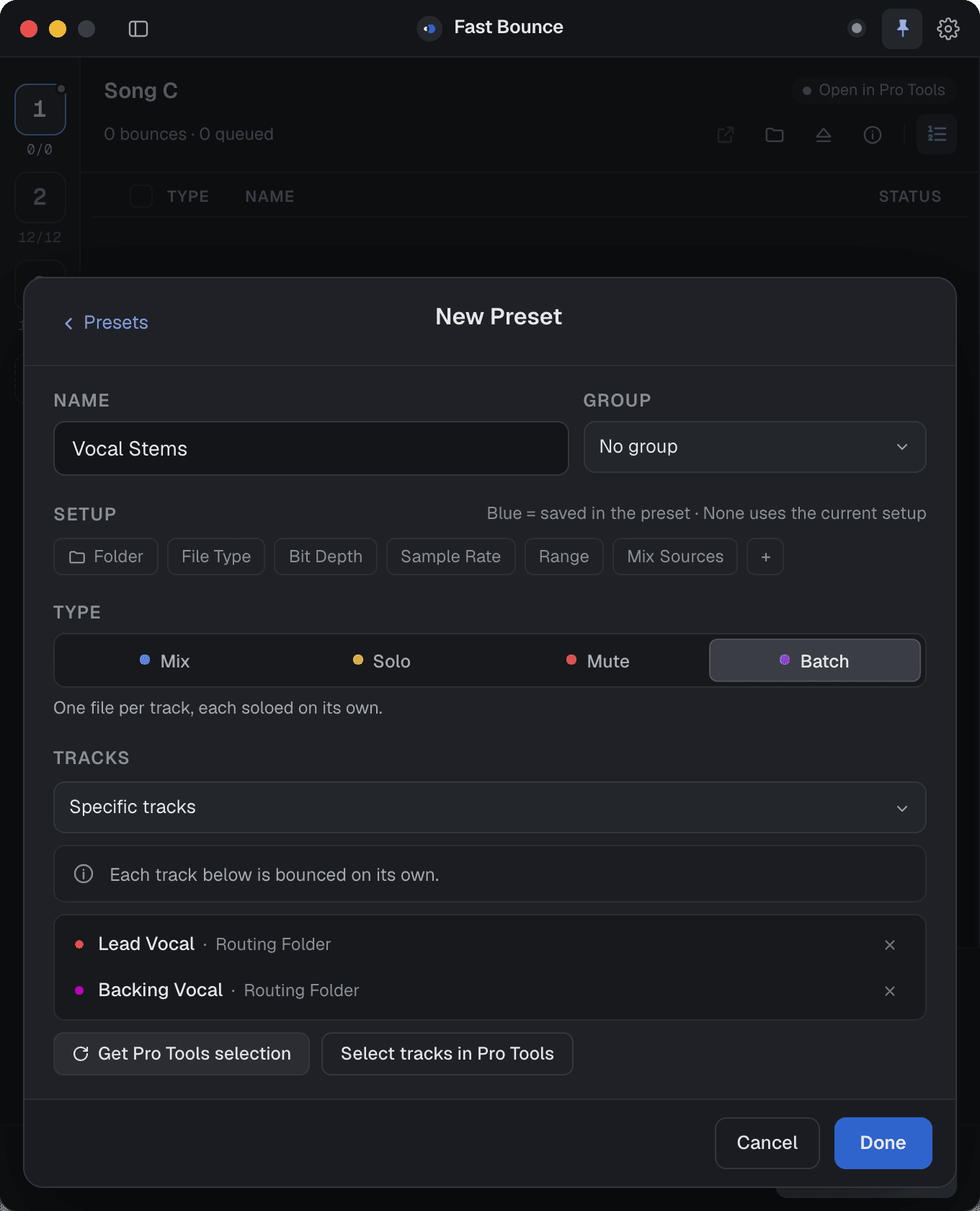
Open Presets under the bounce list, then New Preset. The editor holds:
- Type: Mix, Solo, Mute or Batch.
- Tracks: for Solo and Mute, the track names; for Batch, specific names or a rule such as "All folder tracks". Rule presets never have a missing track.
- Setup: each chip can be saved in the preset (shown in blue) or left as None, meaning the session's current setup is used when the preset is applied. Save the sample rate for an MP3 reference, leave it for a stem set that should match each session.
- Name: the pattern the bounce will be named with, using the Preset name token if you like.
Presets are built around the names in your template, so a preset made on one session works on every session that uses the same track names.
Groups
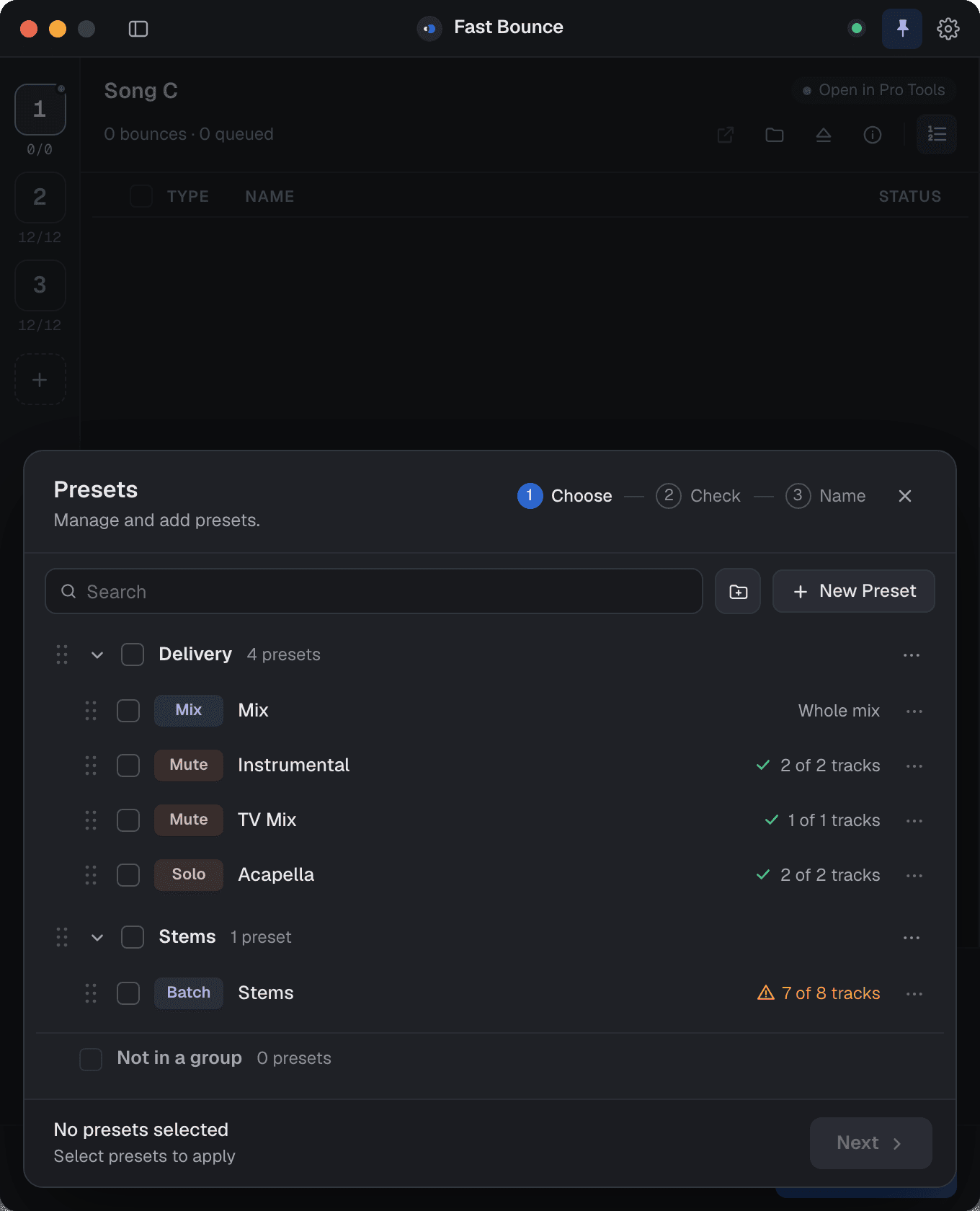
Presets live in groups: Delivery, Stems, whatever matches how you deliver. Drag to reorder presets and groups, search by name, and tick a whole group to apply it at once. New group… and Move to Group are in the menus.
Apply presets to a session
With the session open in Pro Tools, open Presets, tick the presets or groups you want, and go through the three steps:
- Choose: what to apply. Next to each preset you can already see "2 of 2 tracks" or a warning like "7 of 8 tracks".
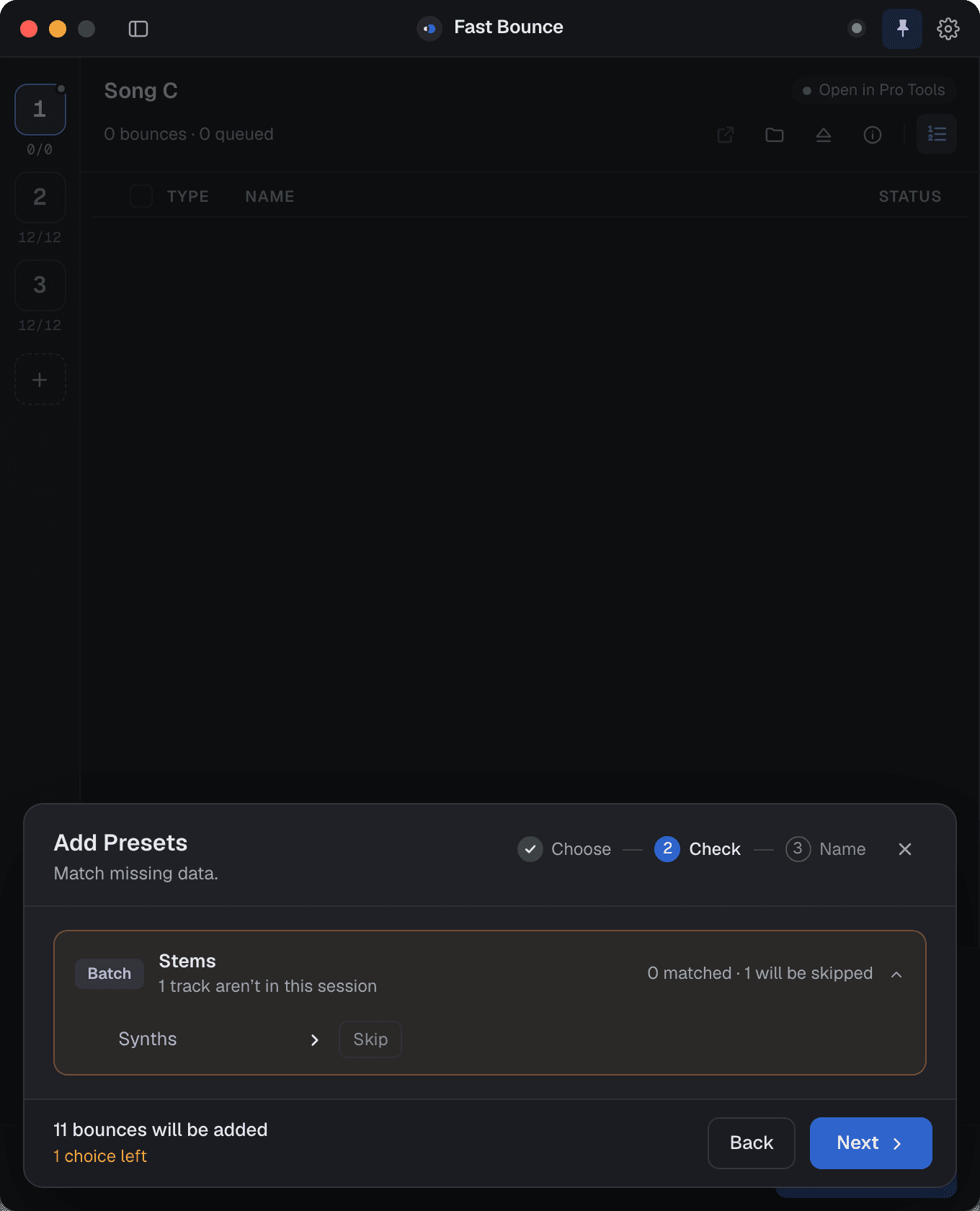
- Check: anything that didn't match, with a fix for each (below).
- Name: the names the new bounces will get, and the separator between the parts. Then Add 5 Bounces.
To apply presets to many sessions in one go, use Load Sessions: the same steps run for every session you load. See Sessions.
The Check step
Before anything is added, each preset is checked against the session.
| Issue | What Fast Bounce offers |
|---|---|
| Track missing | The closest-named track in the session, or Skip this track. |
| Bus missing | Pick another mix source. |
| Markers differ | The range markers matched to the closest names in the session. |
| Name exists | Keep both (the new one gets " 2" added), Replace the one in the list, or Skip it. |
A Batch preset with a rule never reports a missing track: it takes whatever tracks match the rule in this session. When everything matches, the step just says so and you move on.
One preset set per template
Make a Pro Tools template, name the tracks and markers the way you always do, and build your presets on it. New song, same template, one Apply: the whole delivery is queued.