
Your first bounce
This walkthrough bounces the whole mix of a session that's open in Pro Tools. It takes about five minutes and touches every part of Fast Bounce once.
1. Add the session
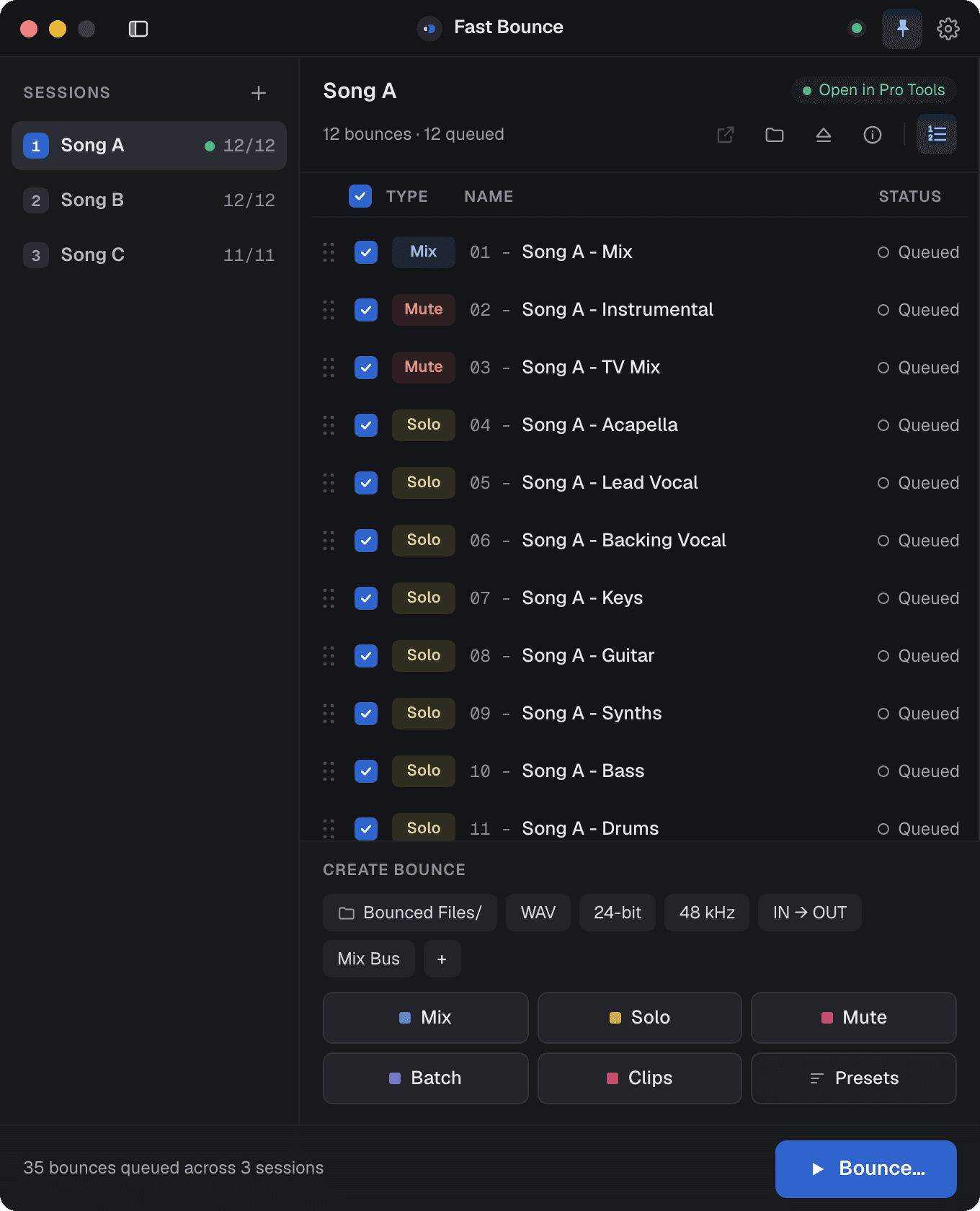
Open a session in Pro Tools. In Fast Bounce, click + at the bottom of the rail on the left, or press ⌃⌘L from anywhere, even with Pro Tools in front. The session appears as 1 in the rail with a green dot: it's the one open in Pro Tools.
Fast Bounce reads the session's tracks, memory locations, mix sources and format. It changes nothing.
2. Check the setup chips
Under the bounce list, Create bounce shows a row of chips: folder, file type, bit depth, sample rate, range and mix source. They start with the session's own values, so a new session is ready to bounce as it is.
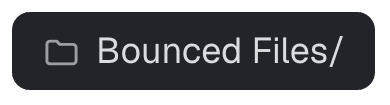
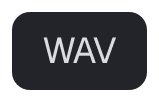
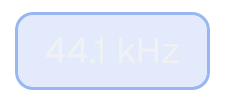


Leave them for now. Clicking a chip changes it for the next bounces you add; Bounce creation explains each one.
3. Add a Mix bounce
Click Mix, or press ⌃⌘X. The Add Mix Bounce sheet opens with a name taken from the session and the same chips. Click Add 1 Bounce.
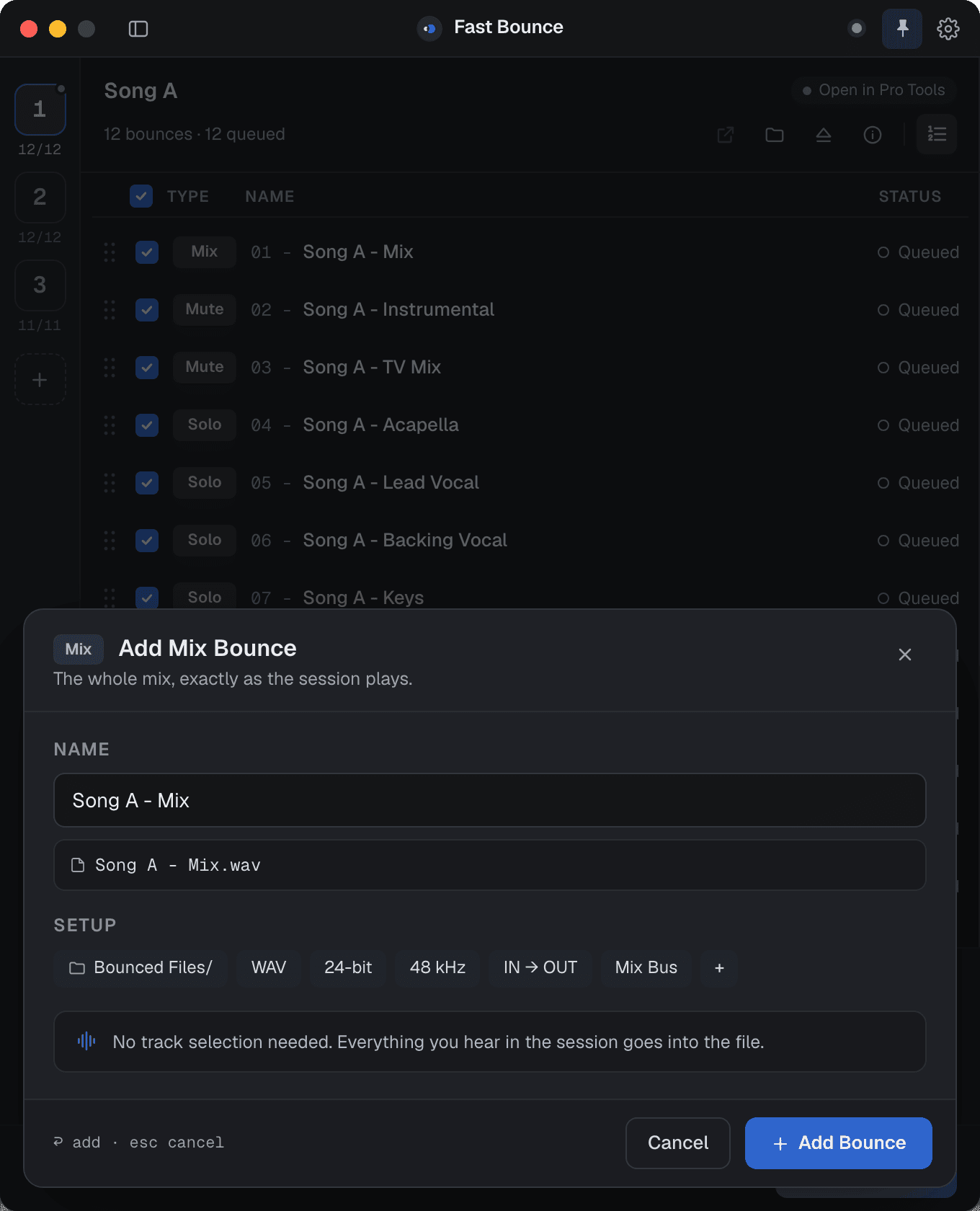
The bounce appears in the list as a Mix row, checked, with the status Queued. Checked means it will run.
4. Bounce
Click Bounce… in the footer. The Bounce sheet lists the sessions that have queued bounces (just this one, for now). Click Start Bouncing.
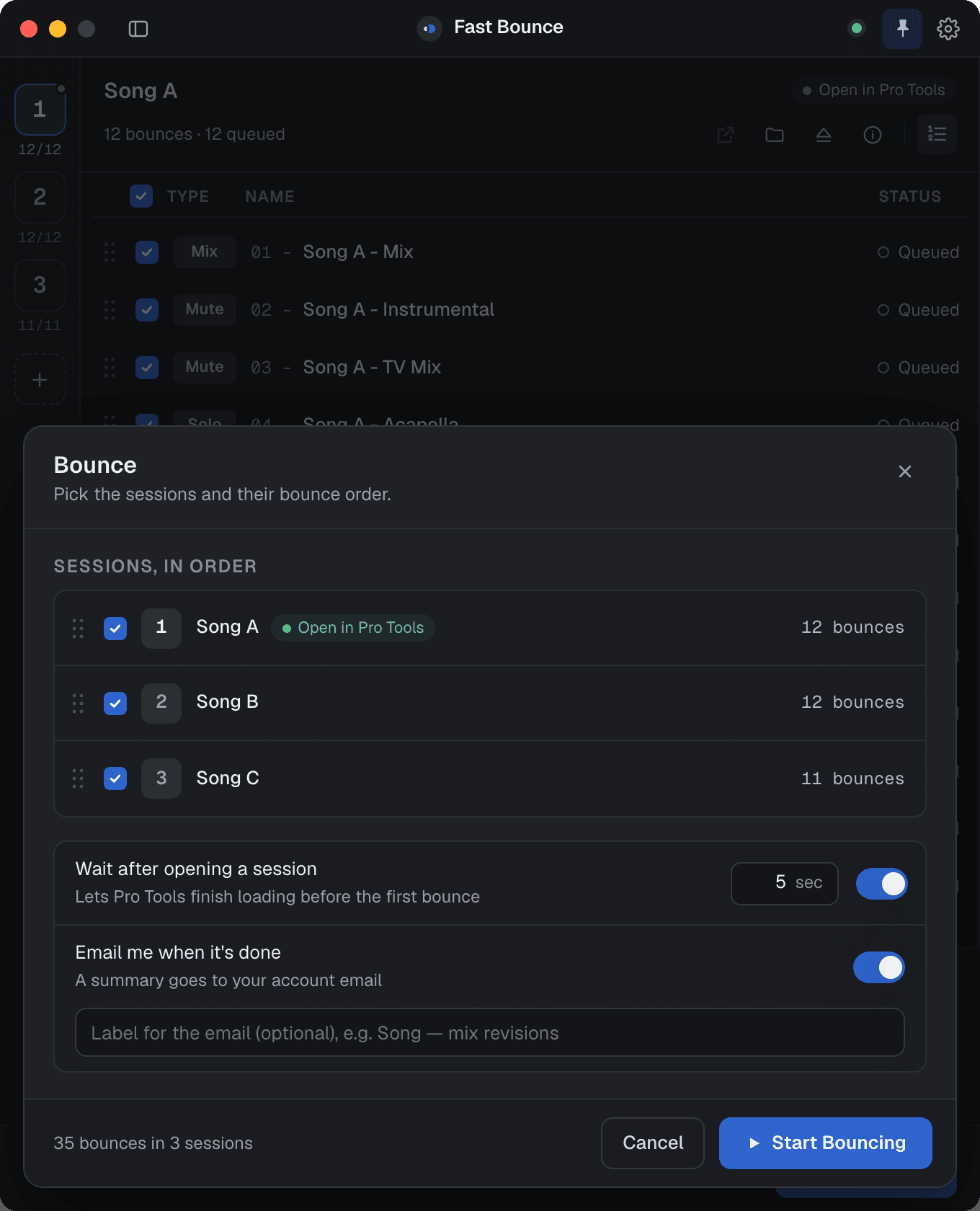
Fast Bounce hands the bounce to Pro Tools. The row goes Queued → Bouncing → Done, the footer shows "Bouncing 1 of 1" and the elapsed time, and you can keep working in other apps meanwhile.
5. Find the file
When the run ends, the Summary sheet opens: what completed, what failed, and the files grouped by folder with Reveal in Finder. Your file is in Bounced Files/ inside the session folder.
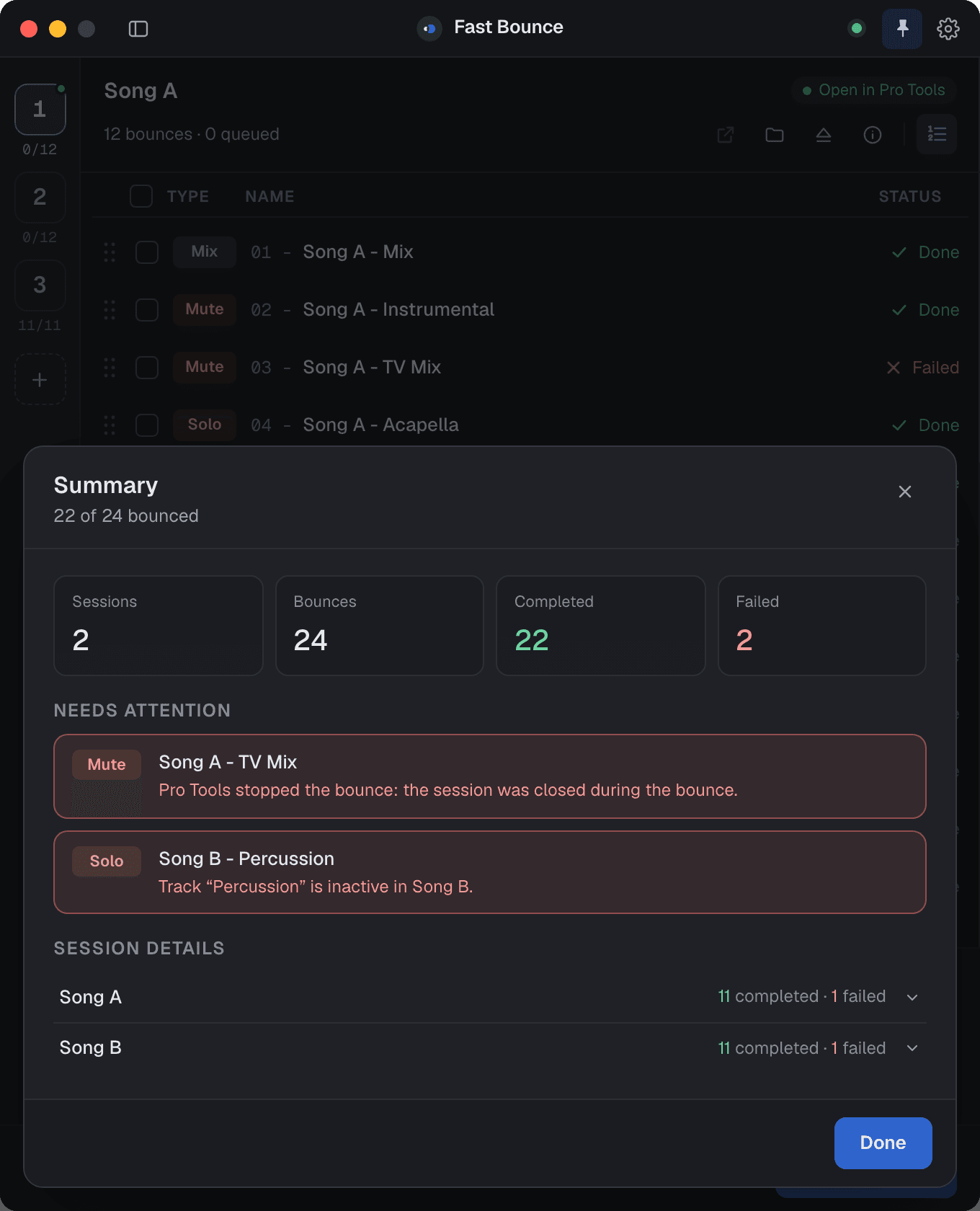
Done bounces are unchecked, so the next run skips them. Check one again to bounce it again.
What to read next
- The main window: every part of the window, top to bottom.
- Bounce creation: the five ways to add bounces.
- Presets: save what you just did as a recipe and apply it to every session.